You are mid-call. The other person starts reading out an address, and you reach for the record button. On plenty of Android phones there isn’t one, which is why how to record phone calls on Android gets searched so often.
Worse, the answers you find contradict each other, often inside the same page of results.
The reason is that this feature depends on three things at once: your phone, your carrier and your country. Change any one of them and the advice flips.
Below is what works in 2026, taken from Google’s and Samsung’s own documentation rather than from a listicle. After that comes the part almost nobody writes about, which is what you do with a recording once you have one.
Worth knowing before you read on: I build an Android dialer, so I have an interest in this subject. My app doesn’t record calls. I’ll explain near the end why I think most people reaching for a recorder want something smaller.
Why you can’t record phone calls on Android on every handset
Google’s support page sets out the requirements plainly. Non-Pixel handsets need Android 9 or later. Pixels need a Pixel 6 or newer, running Android 14 or later. That second rule quietly excludes several Pixels which are otherwise perfectly current.
Then comes the condition that catches most people. You have to be in a country or region where call recording is supported. Google calls it widely available, yet carriers and local law carve out plenty of exceptions.
So two identical handsets can behave differently on either side of a border. Nothing is broken when that happens, and no setting will fix it.
Record phone calls on Android with the Phone app
Supported phones should use the built-in route. Recordings land beside the call in your log, rather than in some folder you’ll forget by Thursday.
On a non-Pixel handset, open the Phone app, make or take a call, then tap Record on the ongoing call screen. Tap Stop recording to finish.
Pixel owners get there through Call Assist, then Call Recording, and stop the same way.
Both parties hear an announcement when recording starts, and another when it stops. That’s deliberate, it can’t be switched off, and it shapes how the rest of the call goes.
What the announcement does to the call
People react to that announcement, so plan for it.
Some go quiet, some ask why, and a few turn noticeably more careful about what they commit to. None of that is a reason to skip recording. It does mean you shouldn’t start one in the middle of a delicate negotiation and hope nobody notices.
Say why you’re recording as soon as it begins. “I’m recording so I get the measurements right” lands very differently from silence after a robot voice.
Where a call turns sensitive halfway through, stop the recording and mention that too. Both parties hear the second announcement anyway, so narrating it costs nothing and buys goodwill.
Recording every call automatically
Two automatic modes exist, and both sit under More options, Settings, Call recording.
The first records numbers that aren’t in your contacts. Anyone fielding cold enquiries all day will want this one. Under “Always record”, switch on Numbers not in your contacts.
The second records chosen people. Tap Selected numbers, then add the contacts you want. Every future call with them records itself. You can also switch it on from the contact card, under Edit contact.
Three situations defeat all of this, by the way. Recording won’t start before the call is answered. It stops being available while a call sits on hold, and conference calls can’t be recorded at all.
How to record phone calls on Android with a Samsung Galaxy
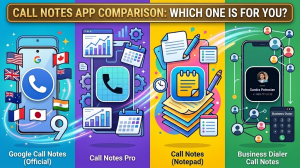
Samsung handles this in its own dialer, and the current version goes further than Google’s. I went through what Samsung offers for call notes separately.
Call recording works on Galaxy phones running One UI 7.0 or higher. Android 15 with One UI 7 added Transcript assist on top, which transcribes, translates and summarises a call you have already recorded.
Read the small print before relying on it, though. Samsung states that a Samsung account login and internet connectivity are both required, so this is not an offline feature. One separate switch, Process data only on the device, controls whether the processing happens locally afterwards.
Languages are limited as well. Samsung publishes the list it supports, expects you to download language packs for transcription and translation, and warns that certain regions and languages may not be supported at all.
Check the exclusions before you count on it, though. Samsung’s own page rules out transcripts and summaries on the Galaxy A56, A36, A26 and A17. Those handsets still record; they just don’t write anything down for you.
Why apps that record phone calls on Android mostly stopped working
Search the Play Store and you’ll still find dozens of recorder apps. Read the recent reviews, though, and the same complaints repeat: silence, or audio with only one voice on it. There’s a reason for that pattern.
In April 2022 Google published a policy update stating that the Accessibility API “is not designed for and cannot be requested for remote call audio recording”. Enforcement followed that May.
That API was the one trick third-party developers had left. Without it, an ordinary app reaches only your microphone. So it captures your side of the call clearly, and the other person faintly through the earpiece, if at all.
Some apps still work on particular handsets, usually where the manufacturer exposes its own recording route. Others work only on rooted phones. Neither is a safe bet to build a habit on.
How to record phone calls on Android when nothing else works
One approach survives every policy and every region, because it doesn’t touch the call at all.
Put the call on speakerphone, then record it with a second device: another phone, a tablet, a voice recorder. Quality drops and background noise creeps in, so the room has to be quiet. Still, this works on an eight-year-old handset in a country where nothing else does.
Tell the other person first. That is the legal position in many places. Besides, it saves an awkward moment later, when a transcript appears from a conversation they thought was private.
The legal part of recording phone calls on Android
I’m not a lawyer, and this isn’t legal advice. These are the two patterns worth knowing, so you can check which one applies where you are.
Some jurisdictions run on one-party consent, meaning somebody taking part in the call may record it. Others require every participant to agree. A few treat business calls differently again.
Google’s own documentation warns that many jurisdictions require consent from all parties, and it puts the responsibility squarely on you.
Cross-border calls complicate it further, since the other person may sit under different rules entirely.
When in doubt, say at the start that you are recording and why. Consent given on the recording itself is the simplest proof you can have, and most people say yes to a reason like “so I don’t write the address down wrong”.
What to do with the recordings afterwards
Here’s the part the how-to articles skip, and it matters more than the recording itself.
Google stores recordings on the device to keep them private. Nothing is backed up elsewhere. People discover the consequence too late: lose or wipe the phone, and every recording goes with it.
Worse, deleting a call log entry deletes its recording too. Tidy up your call history on a Sunday evening and you may wipe something you meant to keep. No warning tells you that at the time.
Retention is adjustable. Under Settings, Call recording, Recordings, you can set how long a recording survives before it deletes itself, or clear the lot in one go.
Where your recordings actually live
Finding them again is simpler than people expect, though the route isn’t obvious.
Open the Phone app and tap Home. Your most recent recording sits in a player right there. Older ones hide under History: tap the caller, find the call, then press Play.
Sharing works from the same screen. The Share button sends a recording to email, messaging apps and anything else that accepts audio, which is how a copy gets off the phone and into somewhere that survives a lost handset.
Do that deliberately for anything that matters. A file which exists in exactly one place, on a device you carry around all day, is not archived in any useful sense.
Decide how long to keep them
Recordings accumulate quietly, and a year of them is both a storage problem and a liability you never chose.
Google lets you set an expiry. Under Settings, Call recording, Recordings, tap Delete recordings and pick how long a file survives before it removes itself. The same screen clears everything at once if you’d rather start clean.
Pick the period on purpose rather than leaving the default. Thirty days suits everyday work calls, since anything you still need after a month belongs in writing by then. Longer makes sense only when the recordings concern money, deadlines or anything a person might later deny.
Then make the exceptions deliberate. Export the two or three calls that genuinely matter, and let the automatic deletion handle the rest while you forget about it.
Turn the recording into two lines
Ask yourself honestly how many recordings you have played back. For most people the answer is close to none. A twenty-minute file is a terrible way to store a fact you needed for four seconds.
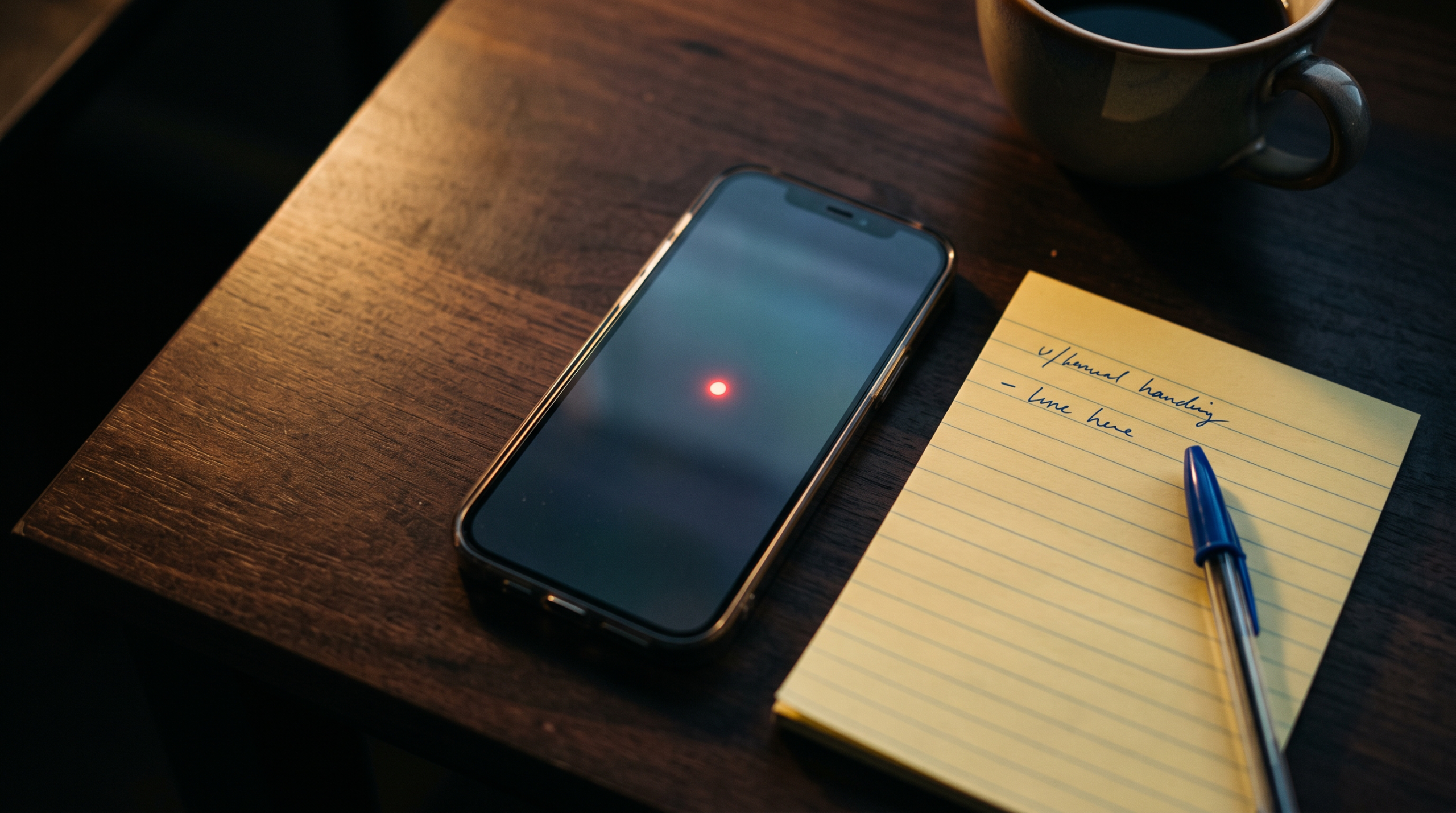
So treat the recording as raw material rather than the result. While the call is fresh, write down three things: who the person is, what was agreed, and what happens next.
“Buyer, offered 2% under asking, wants a reply by Friday” beats the audio it came from, at least at the moment your phone rings again. Being able to say it back is also what builds trust, according to the research. Then keep that line where the phone can show it to you, rather than in a notes app you’d have to search.
Those three facts fit the same slots every time. I printed them as a one-page call notes template you can keep beside the phone.
Keep the audio as well when the call was contractual or contentious. Export it somewhere off the phone, because of the deletion trap above.
When a recording isn’t what you need
This is the part about my own app, so weigh it accordingly.
Business Dialer Call Notes replaces your dialer. It shows the note you keep on a contact, with their company and job title, on the incoming call screen before you answer. Nothing gets recorded, nothing gets transcribed, and nothing leaves your Google Contacts.
That solves a different problem from recording. A recorder answers “what exactly did they say three weeks ago”. The note answers “who is this, and what did I promise them”. Only one of those questions arrives while the phone is ringing.
It costs $9 a month, $49 a year or $99 once, after a 30-day trial, and it runs on Android only.
Buy something else when
Transcripts and summaries are what you’re after. Recent Pixels and recent Galaxies both produce those on the device now, and my app doesn’t compete with either. I put the options side by side in four things called call notes on Android.
Evidence is the goal, say for disputes or compliance, and then you want a proper recorder with an export routine, not a note.
Finally, your phone simply doesn’t show caller details properly, which is its own separate fault. I wrote about the missing company name on the incoming call screen if that sounds familiar.
The methods compared
| Method | Works on | Other person hears | Where it ends up |
|---|---|---|---|
| Google Phone app | Android 9+, Pixel 6+ on Android 14+, supported regions only | An announcement at start and stop | On the device, beside the call log entry |
| Samsung dialer | Galaxy phones on One UI 7.0 or higher | An announcement | On the device, with transcripts on supported models, via a Samsung account |
| Third-party app | Rarely, since the 2022 policy change | Usually nothing | The app’s own folder, often one-sided audio |
| Second device on speaker | Any phone, anywhere | Nothing, so tell them | Wherever you recorded it, at lower quality |
The short version
Whether you can record phone calls on Android comes down to three things: your handset, your carrier and your country. Google’s dialer and Samsung’s both do the job properly where they’re allowed to, announcements included. Third-party apps mostly can’t any more.
Once you have recordings, remember that they live on the phone alone, and that clearing a call log entry takes its recording with it.
Above all, write the two lines. Audio is the backup, while the note is what you’ll actually use. And where you keep call notes decides whether it ever reaches you again.